1
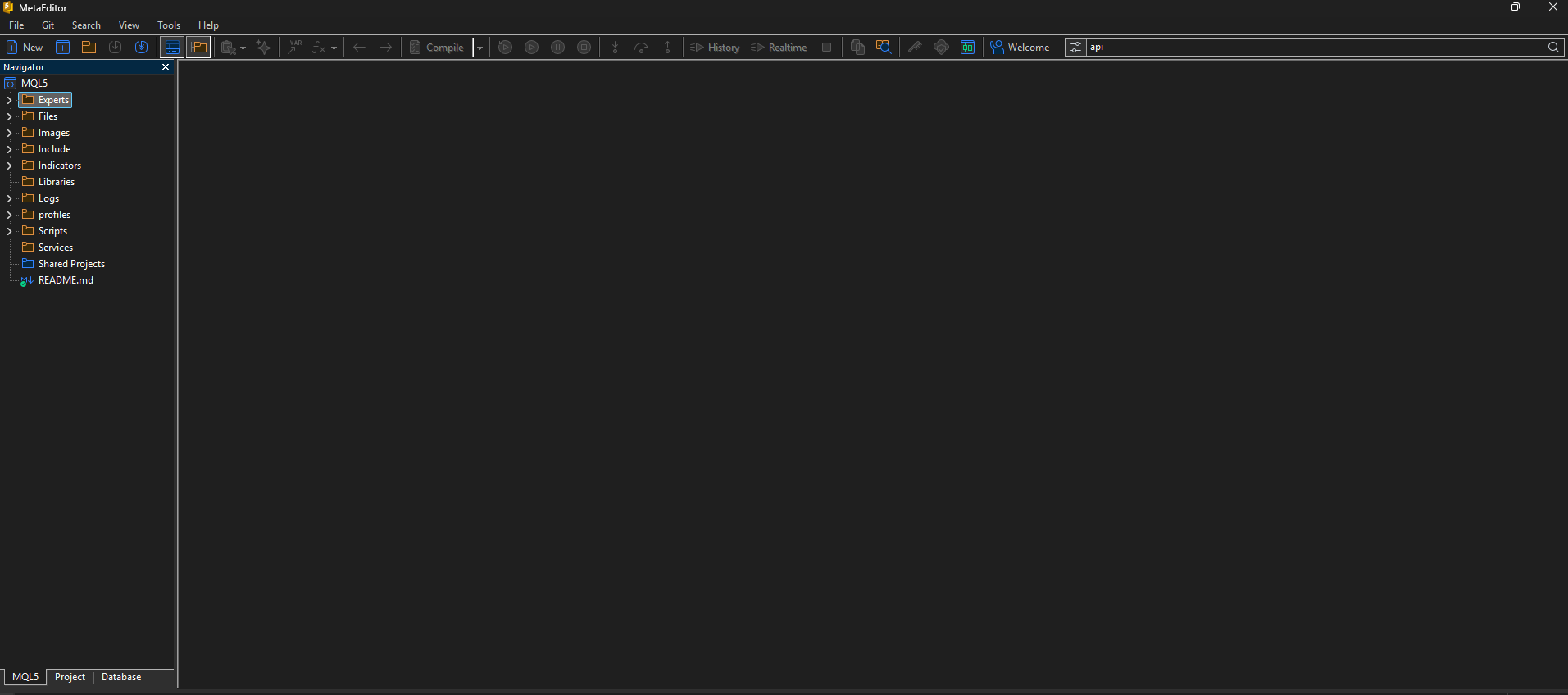
Step 1 — Download the EA File
Trial users: use the Download tab in the demo modal. After purchase on MQL5 Market, your .ex5 file is automatically available in MT5.
2
Step 2 — Place File in MT5
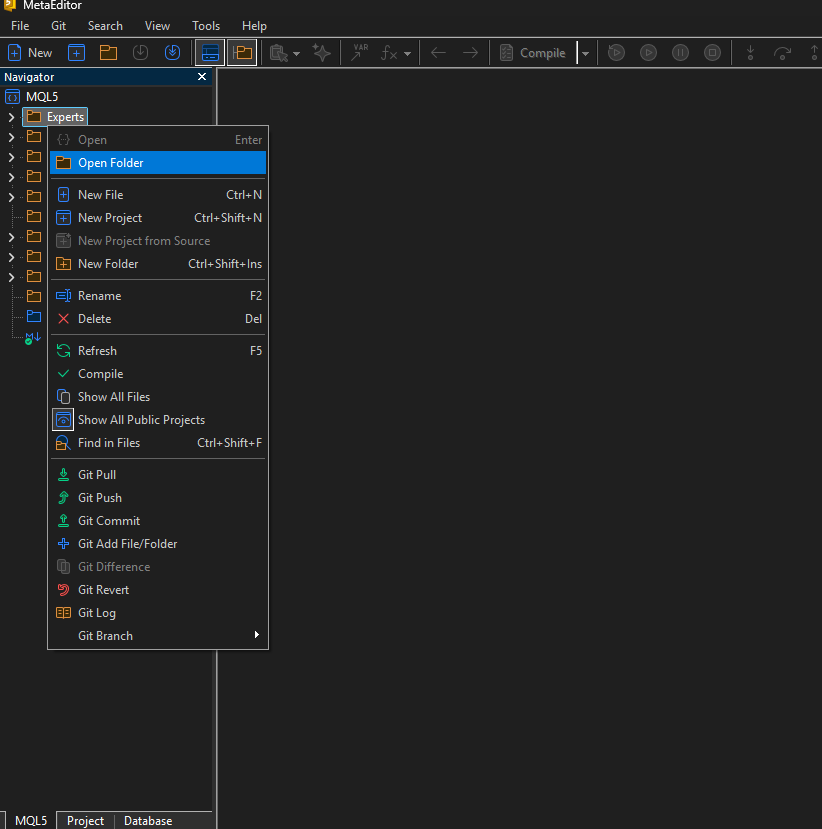
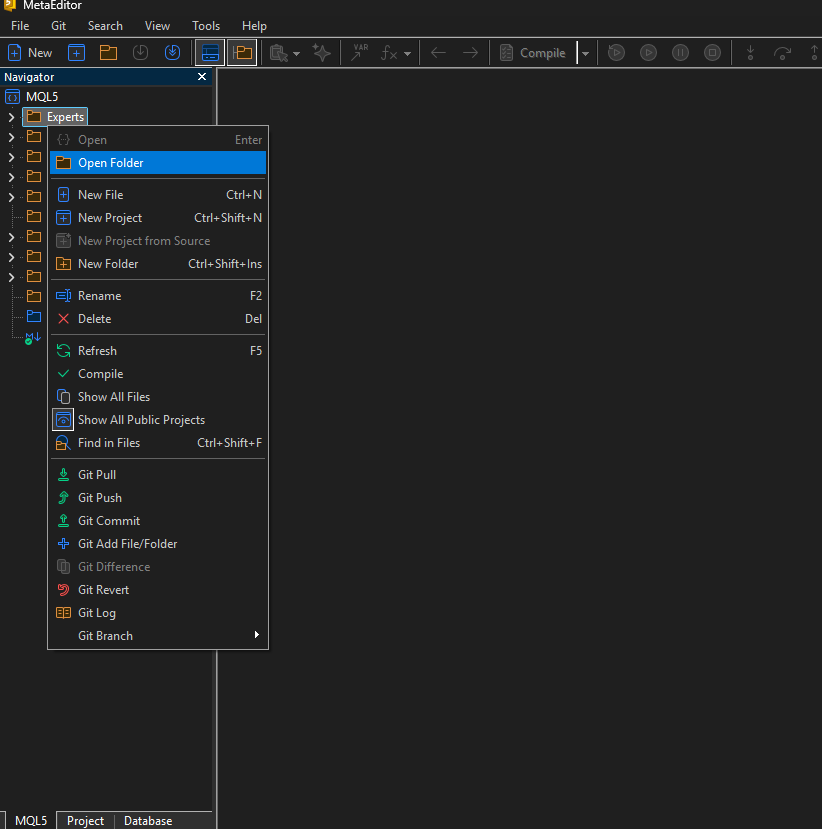
Copy the .ex5 file to the MetaTrader 5 Experts folder:
- MT5 → File → Open Data Folder
- Navigate to MQL5 → Experts
- Paste or copy the .ex5 file here
- Navigator panel → right-click Expert Advisors → Refresh
3
Step 3 — Attach EA to a Chart
Open your trading chart, then attach the EA:
- Navigator → Expert Advisors → double-click (or drag onto chart)
- Common tab → tick Allow Algo Trading
- Inputs tab → configure your preferences
- Click OK — the panel appears on the chart
The AutoTrading button (toolbar) must be green for orders to execute.
4
Step 4 — Enter License Key
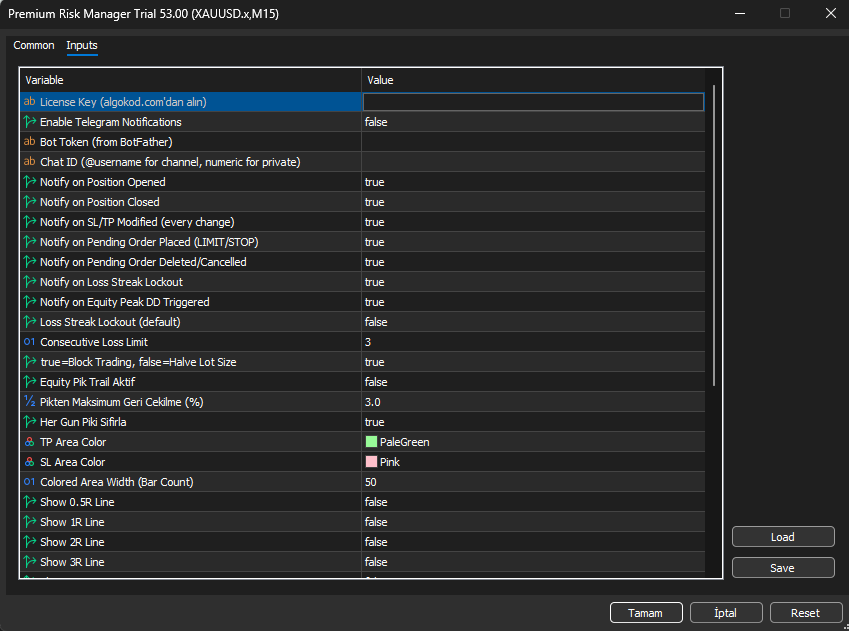
In the EA Inputs tab, find the LicenseKey field:
- Right-click EA panel on chart → Properties → Inputs
- Find LicenseKey, paste your demo or full license key
- Click OK to apply
Need a free demo key? Click Try Free in the navigation bar.
5
Step 5 — Enable WebRequest (License Validation)
The EA validates your license via a secure API call. Allow this URL in MT5:
- MT5 → Tools → Options → Expert Advisors tab
- Tick: Allow WebRequest for listed URL
- Click + and add the URL below, then click OK
- Click OK to save
https://firestore.googleapis.com
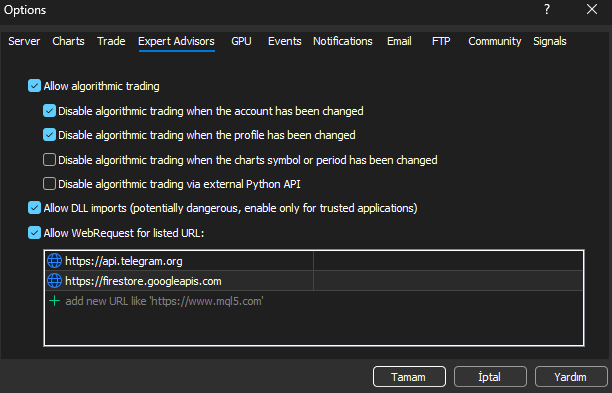
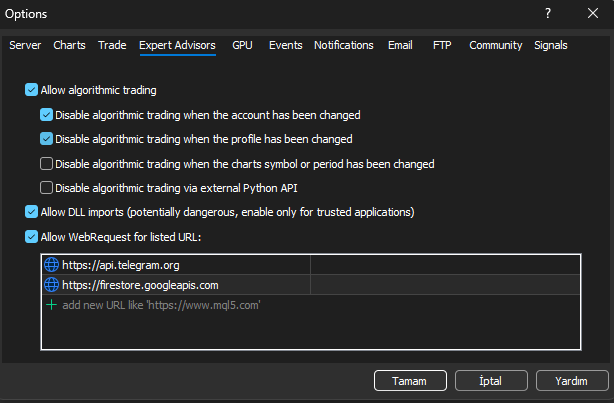
Without this URL, the EA will fail on startup with a license error.
6
Step 6 — Telegram Notifications (Optional)
Get live trade alerts sent directly to your phone:
- Telegram → @BotFather → /newbot → follow prompts → copy Bot Token
- Get Chat ID: message @userinfobot (or use channel @username with @ prefix)
- MT5 → Options → Expert Advisors → add https://api.telegram.org to WebRequest
- EA Inputs: TelegramEnabled = true, paste Bot Token and Chat ID
https://api.telegram.org
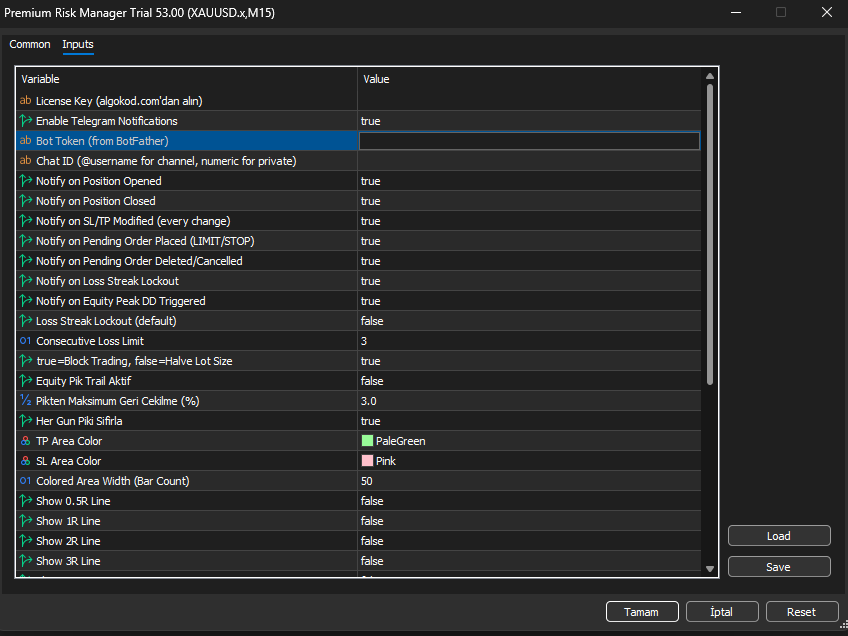
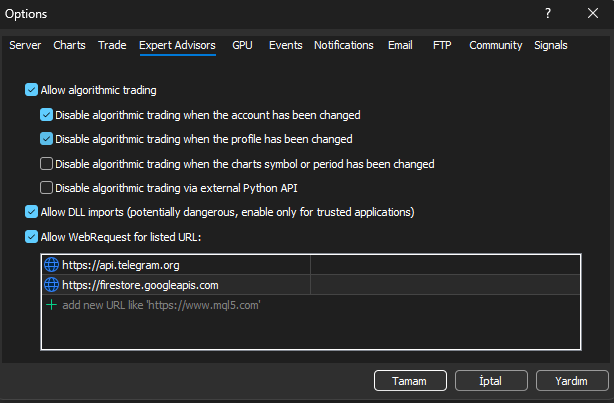
For channels: the bot must be added as a channel admin, otherwise messages are silently dropped.
7
Step 7 — Using Premium Risk Manager
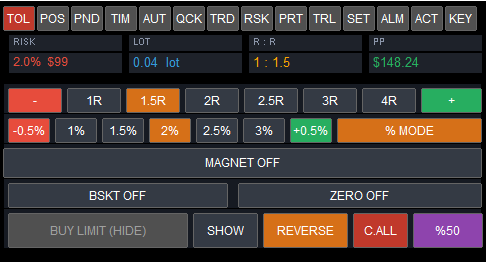
The TOOL tab handles your trade entries:
- Click SHOW — Entry, Stop Loss, and Take Profit lines appear on the chart
- Drag lines to your desired price levels (use magnet to snap to candles)
- Select a risk preset ($50 / $100 / $200) or set custom % of equity
- Click BUY MARKET or SELL MARKET — lot size is calculated automatically
8
Step 8 — Using Multi Trade Manager
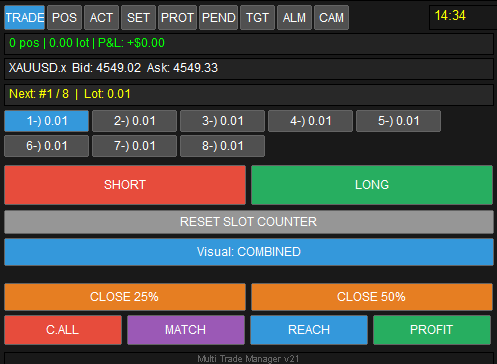
The TRADE tab controls your position sequence:
- Set your lot size sequence (e.g. 0.01 → 0.02 → 0.03)
- Click BUY or SELL — the first lot fires
- Each subsequent click fires the next lot in the sequence
- POS tab: view, close, or modify all open positions at once
Use the ALARM tab to create price and time-based alerts.